- Do I really have to click thru all this? Nope BUT you do have to read this section
- Master Document of all templates Covers the "creation of a New .... Module" sections
- Course "Development and Editing Process". It covers the last 2 points in this document.
- You'll need to contact someone to do the Creation of a NEW COURSE to ensure that the course folder and Editing Status smartsheet is set up correctly.
- Some things about formatting in Word that will look "funkly" on the platform (aka Flunky Characters)
- Creation of a NEW COURSE
- Create a new folder with the name of the course
- Copy the entire "Generic Course Folder Template" folder to create your own course folder OR create your course folder and copy the structure in the "Generic Course Folder Template" folder (You can perform this using the dropbox.com interface or using your local File Explorer(PC) or Finder(MAC))
- This folder contains the structure you will need for your course.
In the ADMIN STUFF folder, are 2 important spreadsheets: - Course parameters - has all the information needed to upload the course to the platform
- Unit Area - Unit - Module Area - Module Sequencing - IF you are using Unit Areas and/Module Areas for organizing your course this spreadsheet will help you communicate, and keep track of, the sequence and organization of the areas.
- and 3 important word docs:
- Module Title Naming Convention - BDS has a naming convention and style for all module names
- Steps to make a course live - after the ENTIRE course has been uploaded and reviewed, these are the steps to make the course purchasalbe from the store
- Minutes per Module Question Count - this document identifies how many minutes the fluency module will get, based on the # of questions in the file. Any "special cases" should be identified here BEFORE asking that the modules be uploaded.
- Create (or have created for you) an Editing Status smartsheet
- How the smartsheet is to be organized
- How to use smartsheeet
- Make sure "PINGS" are enabled
- Create a new folder with the name of the course
- Creation of a NEW TEACH MODULE
- A teach module may consist of 1 or more objectives.
- This file is the template for a new Teach Module - the document consists of, not only the new objective, but information for the module. If you are adding a second objective to a module, you can just copy the Objective Information and paste it below the existing objective(s). The section to copy, is identified within the document.
- An objective consists of multiple question frames.
- We have 4 different types of teach frames:
- Multiple Choice
- Multiple Response
- Fill In The Blank
- No Options
- And for those of you who prefer a single document, here is an "all-in-one" document It's a combination of the Objective file and 3 sample question frames.
- A teach module may consist of 1 or more objectives.
- Creation of a NEW ASSESS MODULE
- An ASSESS module may consist of 1 or more objectives.
- This file is the template for a new Assess Module - the document consists of, not only the new objective, but information for the module. If you are adding a second objective to a module, you can just copy the Objective Information and paste it below the existing objective(s). The section to copy, is identified within the document.
- An objective consists of multiple question frames.
- We have 4 different types of assess frames: Note that the ONLY difference between Teach & Assess Frames is that the Assess frames have NO feedback and NO Hints. Therefore, Hints and Feedback should be removed from the following frames.
- Multiple Choice
- Multiple Response
- Fill In The Blank
- No Options
- And for those of you who prefer a single document, here is an "all-in-one" document It's a combination of the Objective file and 3 sample question frames, all with the feedback and hints removed.
- An ASSESS module may consist of 1 or more objectives.
- Creation of a NEW SURVEY MODULE
- A Survey module may consist of 1 or more objectives.
- This file is the template for a new Assess Module - the document consists of, not only the new objective, but information for the module. If you are adding a second objective to a module, you can just copy the Objective Information and paste it below the existing objective(s). The section to copy, is identified within the document.
- An objective consists of multiple question frames.
- We have 5 different types of survey frames. Note that the ONLY difference between Teach & Assess Frames is that the Assess frames have NO feedback and NO Hints. Therefore, Hints and Feedback should be removed from the following frames.
- Multiple Choice
- Multiple Response
- Fill In The Blank
- Comment
- No Options
- And for those of you who prefer a single document, here is an "all-in-one" document It's a combination of the Objective file and 4 sample question frames, with all the feedback and hints removed.
- A Survey module may consist of 1 or more objectives.
- Using Live Questions in more than 1 Course
- When using a question in more than 1 module, if a question is updated for 1 module, it will need to be updated every place that question is used. There are 2 circumstances that will be addressed:
- The same questions are being used, and the quesref number is being maintained. Usually this is done when an identical course is being created, with different, or additional modules.
- The same questions are being used, and the quesref number is being changed in the new course.
NOTE: This module is used in EACH OF THE FOLLOWING COURSES: Course 1; Course 1a; Course 1b
Any changes to these questions will need to be updated in ALL 3 courses.
The red makes the message stand out, and at the top it's the first thing someone sees when they open that document. - Circumstance #1: Same question, maintaining quesref #
- In order to keep things organized, and easy to find, use the following folder structure:
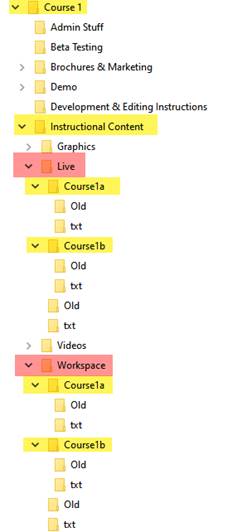
- Any files that are pertinent to the different courses, should exist in the same folder, but have slightly different names. For example the Course Parameters spreadsheet in Admin Stuff.
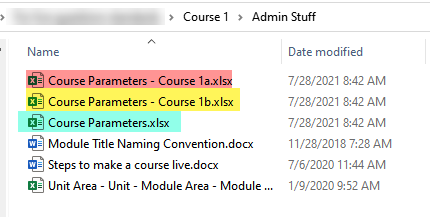
- In order to keep things organized, and easy to find, use the following folder structure:
- Circumstance #2: Same question, changing quesref #
-
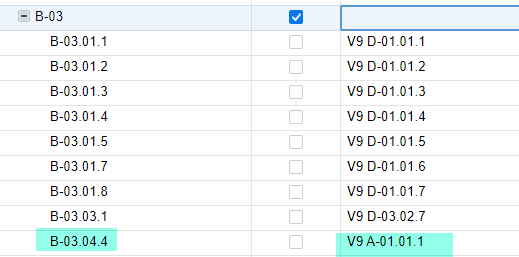
In this circumstance, it's important to maintain a reference to the original question and a reference to the new question.
There are 2 ways that this as been done in the past. After the [#] the quesref to the other couse is added:
When updating 1 question, the reference to the other is available.
- Create a "crossreference" document where the "old" course is cross referenced to the "new" course.
-
In this circumstance, it's important to maintain a reference to the original question and a reference to the new question.
- Click here to get a PDF version of this procedure
- When using a question in more than 1 module, if a question is updated for 1 module, it will need to be updated every place that question is used. There are 2 circumstances that will be addressed:
- Course Development & Editing Process
- Standard protocol for the naming and movement of Word Documents during the creating of new courses
- images and videos
- Media supported - minimum sizes
- Communicating in the word doc where the media can be found and where it should go
- ADA Compliance - Any course that is used by a university MUST be ADA compliance. IF you hope that university picks up your course, it's better to be PROACTIVE and do the ADA Complaince during the development rather than REACTIVE.
- Information Chris & Kim gathered
- Alt Text Notes
- Image Description Guidelines
- ADA Requirements for Graphics & Videos Content Developers
- Chris on screen readers and our process to ADA complaince
- ADA-‐Compliant Video and Audio Guidelines from Valencia
- Why Don’t Screen Readers Always Read What’s on the Screen? Part 1: Punctuation and Typographic Symbols
- Information Chris & Kim gathered
- Phase 1: Copy Editing Process
- Phase 2: Platform Review
- Phase 3: Beta Testing (as/if required)
- Phase 4: Make Course Live
- Maintenance Phase Process
- Standard protocol for the naming and movement of Word Documents during the Maintenance of an exisiting course
- Written Description
- Note: Excerpt from this document: The following protocol to keep different versions of our MS Word files organized. Most critically, it is important that we have a Word file with instructional content that accurately reflects what is in the text file and live on the platform. This process applies to all COURSE Word documents: CE, CBA, RBT, Climate Change. HOWEVER, if you are adding commented out lines or notes to the document (i.e., These questions are also used in Course XXX) then there is no need to follow these procedures. Simply add your note or commented out line, accept the changes and move on. WHY? BECAUSE "commented out lines and notes" are NOT instructional content and do NOT appear on the platform!
Any other changes, please follow the protocol
- images and videos
- Media supported - minimum sizes
- Communicating in the word doc where the media can be found and where it should go
- ADA Compliance - Any course that is used by a university MUST be ADA compliance. IF you hope that university picks up your course, it's better to be PROACTIVE and do the ADA Complaince during the development rather than REACTIVE.
- Phase 1: Copy Editing Process
- Phase 2 - Platform Review
- Phase 3 - Make Material Live
- Quick Fixes
- Standard protocol for the naming and movement of Word Documents during the Maintenance of an exisiting course
- Resources
- FAQ
- Q: Why do I have to copy a LIVE the file to Workspace before I make changes to questions?
- A: Imagine this scenario: you have a comment from a user and realize that you could reword/rework the hint. You go to the LIVE folder and find a document with MULTIPLE additions and deletions, including to the question you want to modify. Only by hovering over the modifications can you figure out WHO and WHEN these changes were made. NOW you have to figure out how to incorporate YOUR changes.
- Q: But (so far) I'm the only person working on the course so why do I have to copy the file from LIVE to workspace?
- A: Imagine that you started to re-do the questions, and got side tracked. 6 months later you get a comment from a user and go to reword/rework a hint. You go to the LIVE folder and find a document with MULTIPLE additions and deletions, including to the question you want to modify. You vaguly remember these changes, but what about now? How you will incorporate your new changes??
- Q: I go to modify a document and discover that there's a "Copied mm/dd/yy INITIALS" and the version in Workspace has lots of edits. What do I do???
- A: The advantage of our naming convention means you know WHO and WHEN someone started working on this document. You need to contact them (email or phone call) and discuss YOUR changes, THEIR changes and any timeline.
Bottom line is YOU need to make sure YOUR changes are incorporated into THEIR document. Either YOU do it or THEY do it.
If your timeline is faster than theirs, then make a NEW "copied mm/dd/yy their initials copied mm/dd/yy YOUR initials" document and copy to workspace and make your changes in YOUR copy and in THEIRS. Make sure when you ask for the changes to the make to the text file you CLEARLY STATE which file is to be used for the changes.
- A: The advantage of our naming convention means you know WHO and WHEN someone started working on this document. You need to contact them (email or phone call) and discuss YOUR changes, THEIR changes and any timeline.
- Q: Does the movement and naming convention only apply to Word docs?
- A: Funny you should ask. Over the next couple of weeks, you'll be seeing updates to all graphics and video folders to include LIVE and Workspace folders. The Generic Folder Template has already been updated.
- Q: Why can't I just email someone about the changes?
- A: Our inboxes are extremely active and full. The chance of an email rolling "below the fold" and lost in all the emails. Pings, on the other hand, stay until responded to. Many of us have filters set up to ONLY show our pings. If you need help with this, contact Chris or Joel.
- Q: What's the difference between "notes" & "commented out line"?
- A: In general, NOTES appear before the first OBJECTIVE. They are NEVER included on the platform, content starts at the OBJ. COMMENTED OUT LINES are intermingled with the content and the first character is a ; which, when imported into the platform, is ignored.
- Q: What are the so-called "Funky Characters"?
- A: There are Word formatted characters that appear on the platform as "funky". They MUST be avoided. If you don't replace them, the person uploading the text file will.
- Setting up Word AutoFormat
- other character strings to watch out for and how to correct them
- Q: Why do I have to copy a LIVE the file to Workspace before I make changes to questions?